Featured

Welcome to the Humboldt Winlink Wednesday Site!

The Humboldt Winlink Wednesday Net was started to encourage amateur radio operators to become familiar with and expand their skills using Winlink. What is Winlink? From the Winlink website (linked to the right)… Winlink “is a network of amateur radio and authorized government-licensed stations that provides worldwide radio email using radio pathways where the internet is not present.” Participation is accomplished by sending the check in message via Winlink to the net control station KN6CEI. Net control will send a weekly reminder via Winlink to net participants on Tuesday along with that weeks assignment and a wrap up message on Thursday (or Friday) with the net results and any other announcements. Weekly assignments can be found on the calendar below.

Each Wednesday send a check in to KN6CEI using that weeks assignment. Standard check in messages are formatted as: CALLSIGN, FIRST NAME, CITY, COUNTY, STATE, BAND USED (HF, FM, Telnet).

All participants are highly encouraged to send their message via RF. Telnet (internet connection) should be reserved for beginners or amateurs with Technician licenses that do not have a nearby node within their frequency privileges.

A note on “Wildcard Wednesdays”. These check ins will require you to check your Winlink inbox and/or this site for how to check in that week.

The most important thing about this net is to learn and HAVE FUN!!!

Thank you for visiting and I hope to see you on the log!

Wildcard Wednesday 2/19/2025

Here’s the file for the check-in assignment. Go ahead and download it, then attach it to your message. The .txt file didn’t work out, so I switched it to a PDF. If you want to save some space, feel free to copy the contents into a .txt file. Just don’t slap it right into the message body. The main point here is to use attachments!

Humboldt Amateur Radio Club Field Day 2024

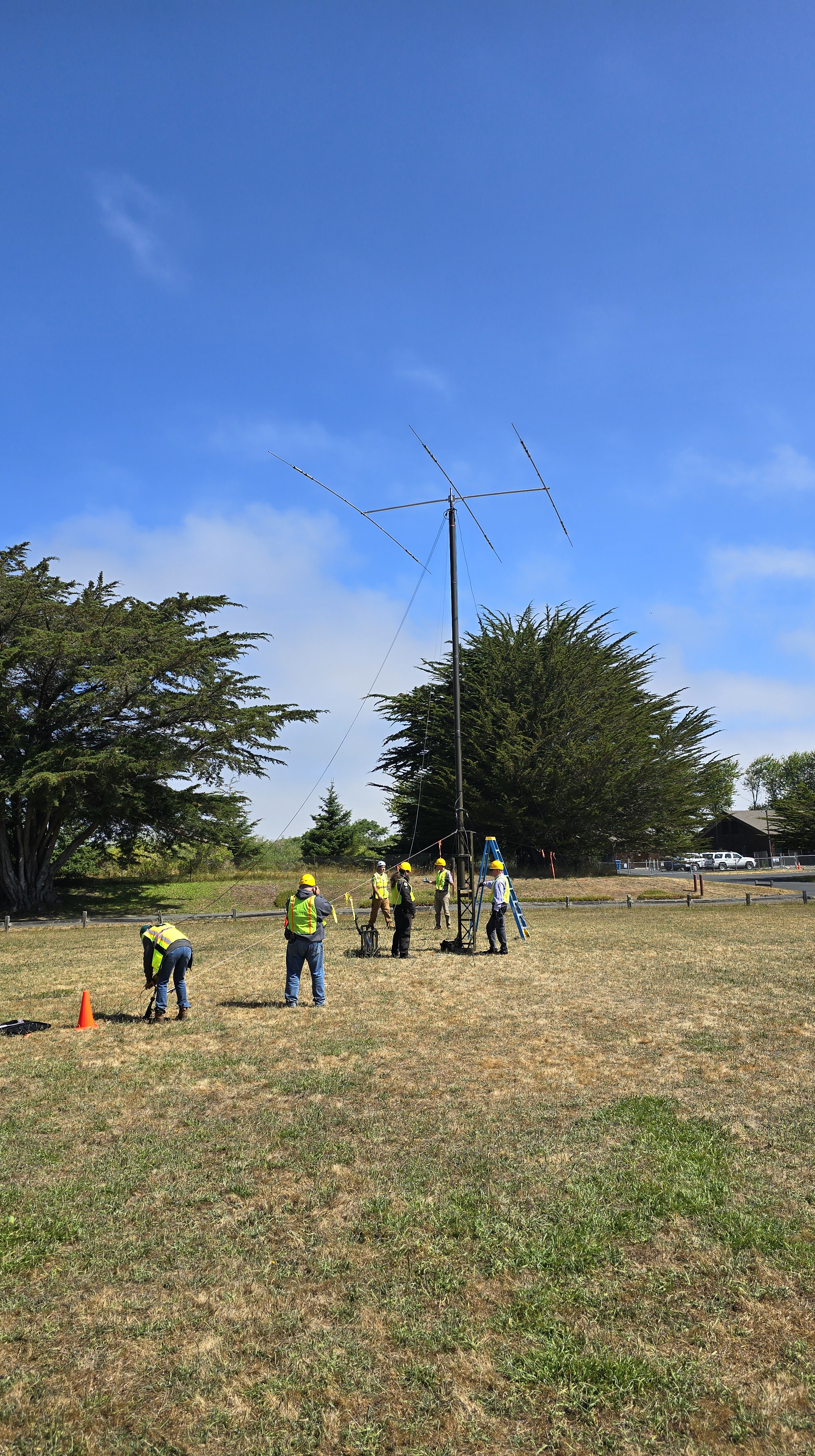
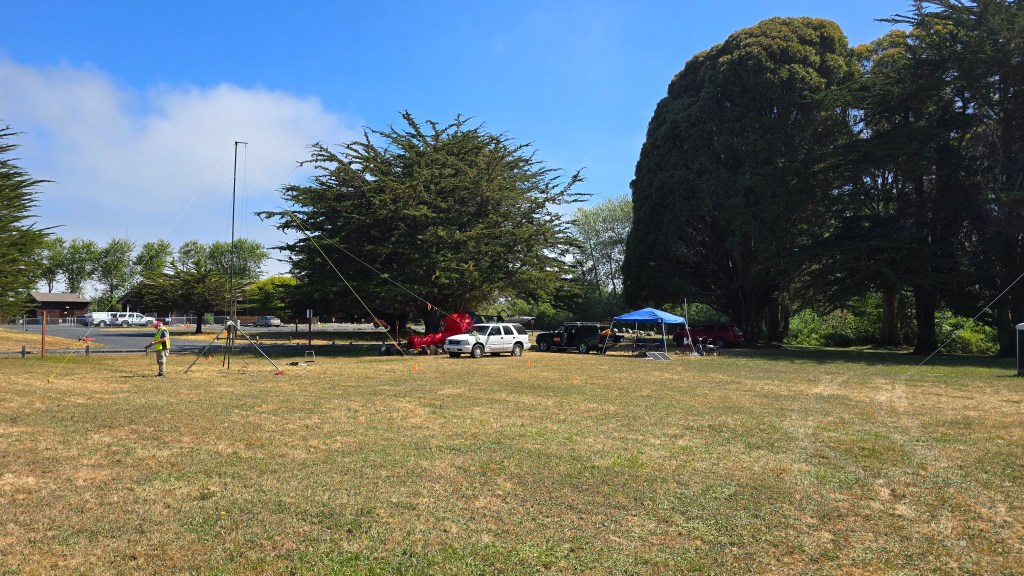
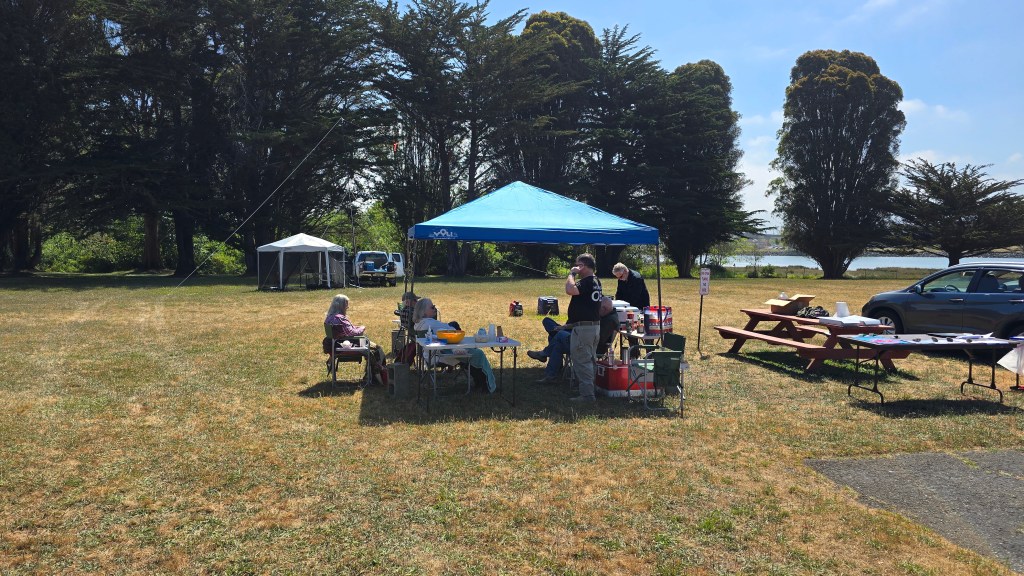
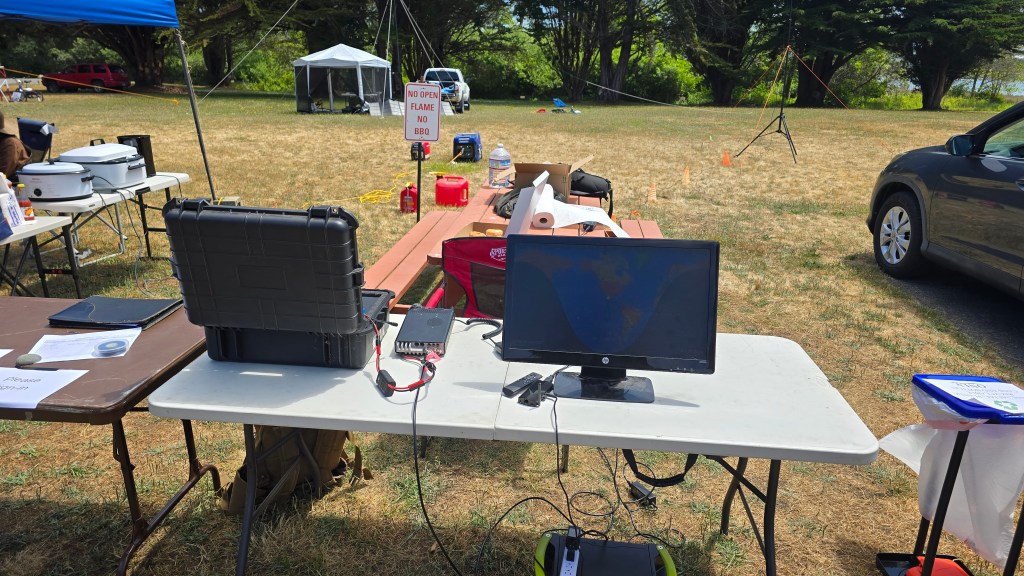
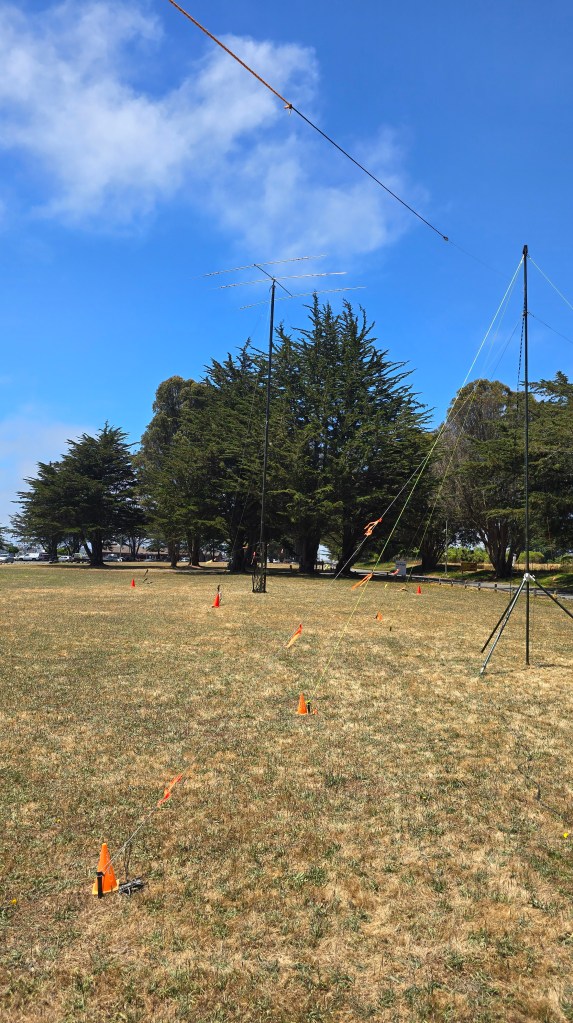
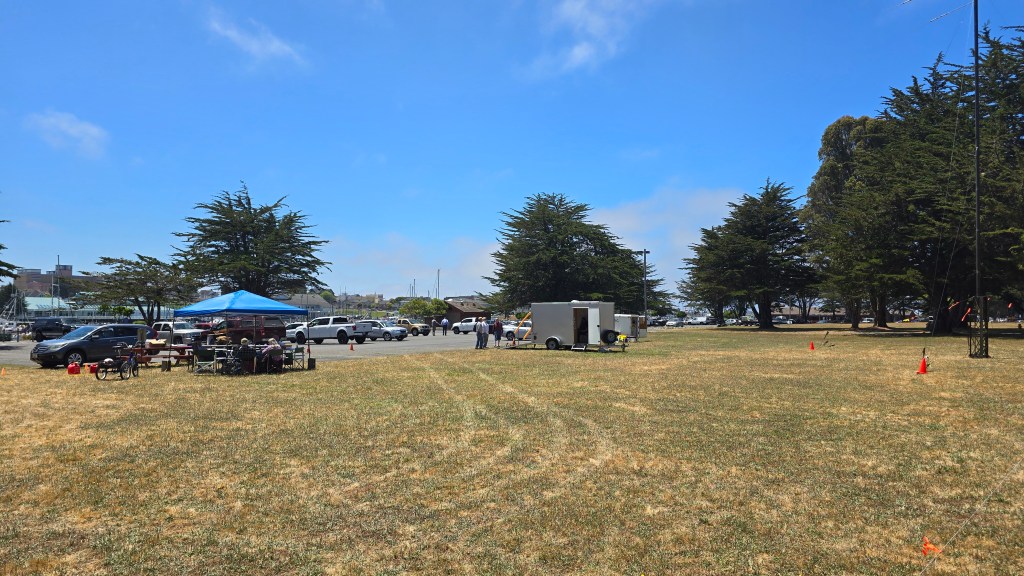
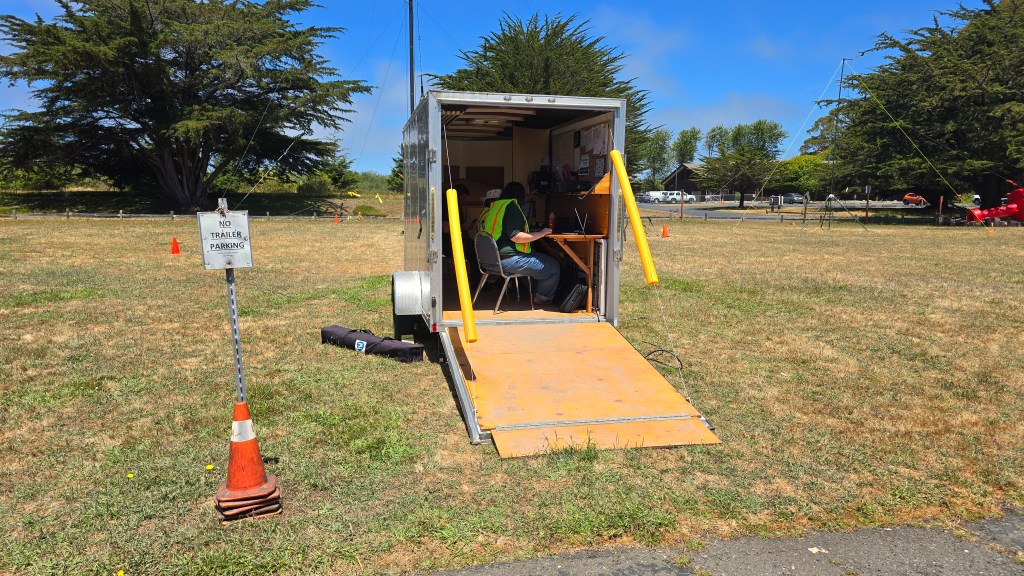
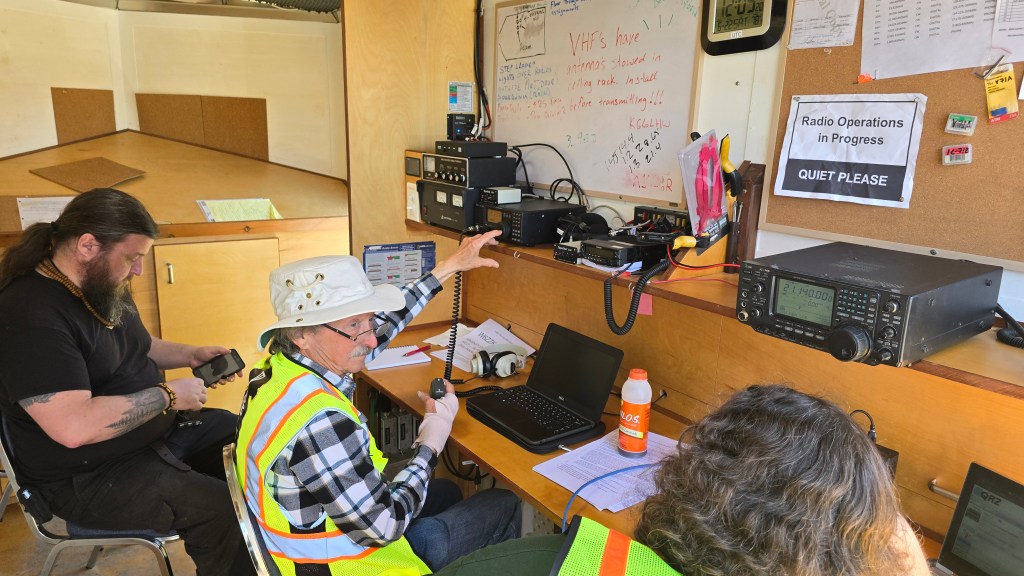
Humboldt Amateur Radio Club participated in the ARRL Field Day 2024 this year from their usual spot on Woodley Island in Eureka, CA. Everyone that attended had a great time. I set up a demo Winlink station next to the hospitality tent and talked with visitors and other hams about Winlink and it’s capabilities as well as sending Winlink messages to folks to demonstrate how it works. My station pictured above with the white table and video monitor was a Yaesu 857 and a Buddipole set up for 40 meters. The club set up their tower and operated out of the club trailer and other members set up stations around the site. Hopefully everyone else that participated had a fun and successful Field Day! Tell me about your Field Day experiences in the comments and if you used Winlink!

Wildcard Wednesday Map from 3/15/23

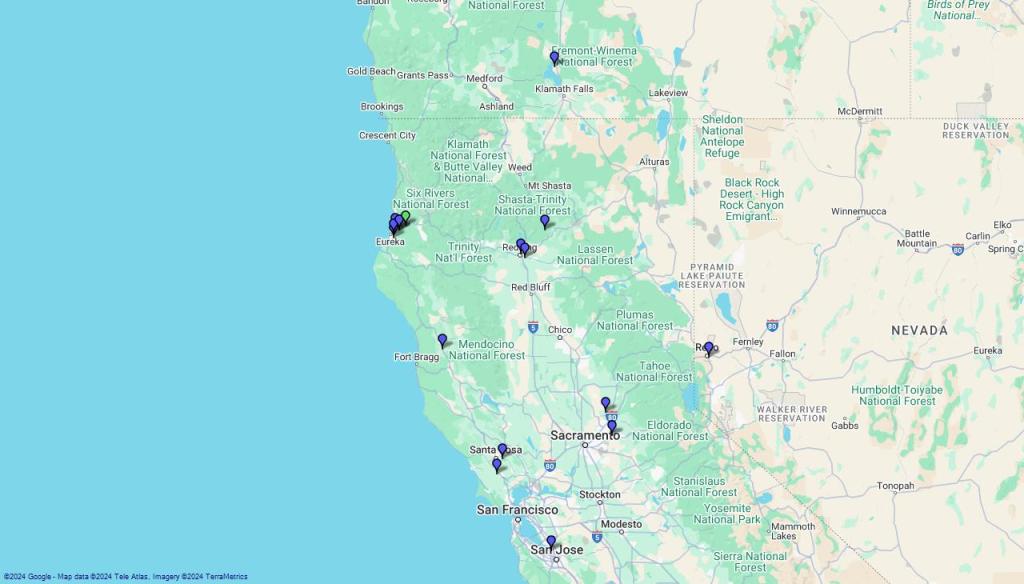
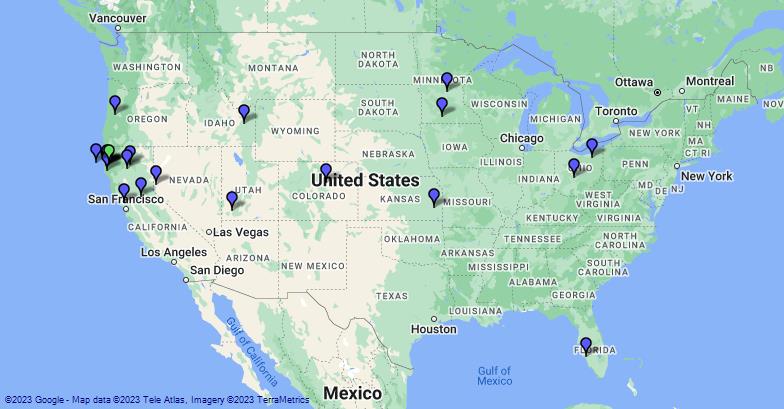
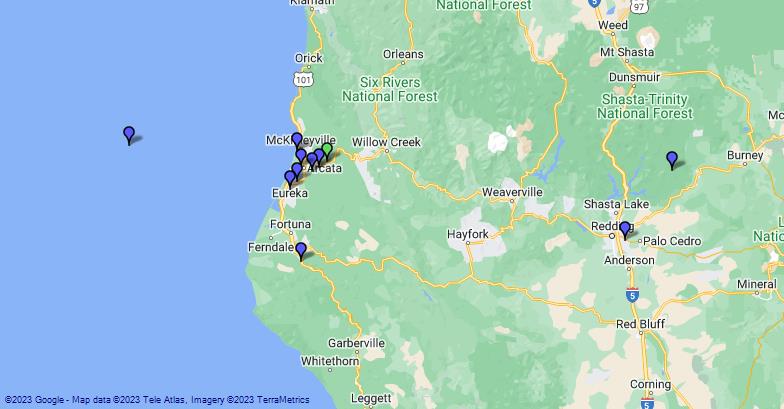
As promised, here is the map that was generated by Winlink Express using the Winlink Check In forms that were submitted. There were 27 check ins for the week but there doesn’t seem to be that many markers on the map. I must have some more learning to do myself and experimenting with filters. There are no labels on the image but I can tell you that while interacting with the map on the program, I can hover over a marker and get all the information from the form to appear. Thanks to all for participating in this exercise. I’d like to do more mapping check ins in the future.

This is the wide view of all the check ins mapped from this week.

A zoomed in regional look at the map. No, the marker in the ocean was not on a boat when they checked in. I’m assuming there was a typo on the longitude or they were just having some fun.

December 2022 Schedule

During the month of December, the net is going to be on “cruise control”. This means you can still check in on Wednesdays if you like and I will acknowledge your message but I will not be sending reminders or wrap ups. I hope everyone is able to enjoy the holiday season in each their own way. I look forward to seeing everyone on the log in 2023!

Saved Forms and Favorite Template Creation

This week we will learn how to create a saved, preloaded form for checking in to the net. We will also learn how to create a favorite template to quickly access templates that we frequently use.

To create a saved form, start a new message and open a template as you normally would (ICS 213). Fill out the form with all the required information but leave out the time and date. You will enter that each time you load the saved form. Click Save INITIAL data on the lower left. You will be prompted to rename the form to whatever you choose. Next, depending on how you are configured to save downloads online, you will save the form onto your computer. Save it to a spot that is easy to remember and access. To load your saved form, click Load INITIAL Data on the top of the template and navigate to where you saved your file and open. Enter the date and time and you are ready to submit!

The following describes how to create a favorite template link. On the main Winlink screen, under Message, select Set Favorite Templates. You have the option of saving 4 different templates. Name them how you choose and use the Browse to select the template you want. It will bring up the template manager so you can select your template as you normally would. Click Save. Now, when you create a new message, you will see a link to your template on the menu bar of the message screen. It will immediately open the template where you can now quickly load the saved template you created earlier.

Wildcard Wednesday – 5/17/2022

Scenario:

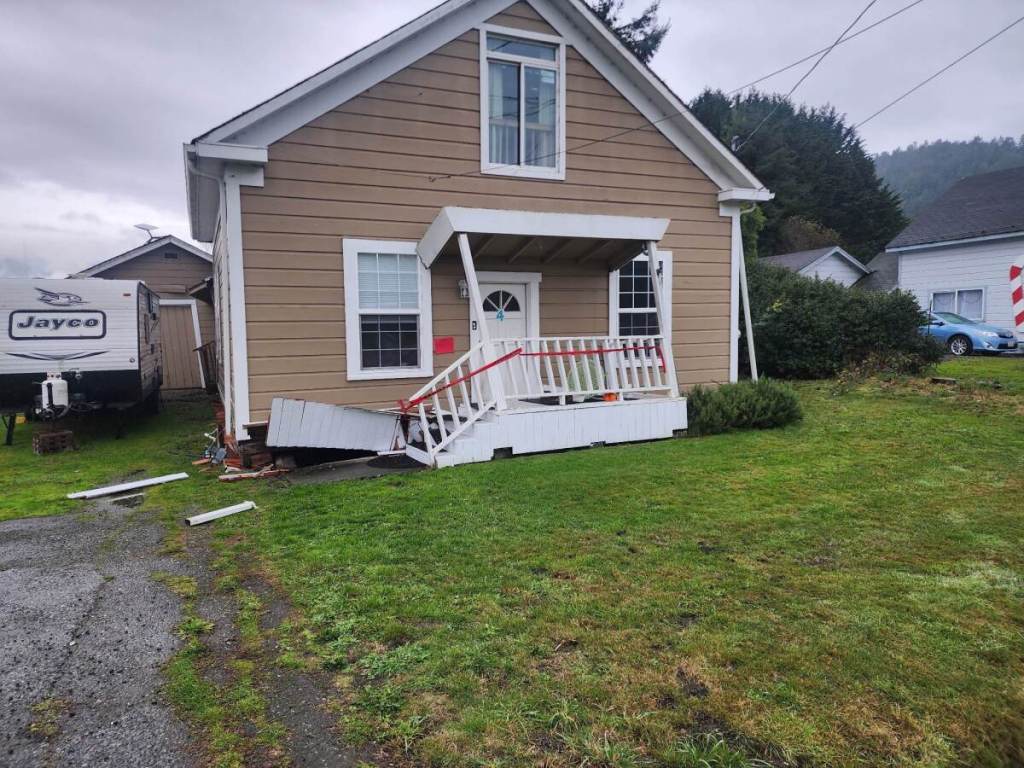
A 7.2 earthquake has occurred off the coast of Eureka causing major damage to local infrastructure. Landslides have severed internet connections and knocked out cell towers. Communication systems are down. Your neighbor knowing you are a ham radio operator has come to you. They want to let their family out of the area know that they are ok but they cant make any calls or send any emails and have asked if you could help them.
Your neighbor John Smith asked if you could send a message to his daughter Jane Smith and let them know that even though he lost several possessions, he is ok and will talk to her when the phones come back. John gave you Jane’s email, kn6cei@arrl.net. Use the Welfare Message form and fill out for John to pass the message to Jane.

Your check in will be complete when you send the form which will find its way into my inbox. I hope you enjoy this weeks exercise and learning about one of the forms available.